Celorga for macOS
A native workspace for local notes, planning, meetings, and agent work.
Celorga brings an ordinary folder of .org and .org2 files into one Mac app. Your files remain the source of truth, so you can also read, edit, sync, or version them with tools you already use.
Start with an agent and today's note
On first launch, Celorga creates a plain-text workspace automatically and asks you to connect an agent already available on your Mac. Choose local Codex, local Claude Code, or an OpenClaw Gateway you already run. You can also continue without AI; Celorga does not require an account or agent.
After setup, Home opens immediately with a chat box and today's daily note side by side. Ask a question, write in the note, or do both. The initial workspace lives in a normal folder that you can move or rename. Use Celorga → Settings… → General to update its portable name and kind, reveal it in Finder, or open a different corpus.
If you already keep notes in another folder, choose it from the workspace options during setup or mount it later from the corpus switcher. Celorga derives its views without moving your source of truth into a private database.
Global capture works anywhere on your Mac while Celorga is running. Press Cmd-Ctrl-Return to add a note or task to today's daily note, including dates, tags, links, files, or images.
Celorga stores daily notes in the corpus's daily/ zone by default. Set roam.dailiesDir in org2.json to a valid absolute path or a directory relative to the corpus root to use a different location; missing or invalid values fall back to daily/ rather than the corpus root. Celorga creates a missing daily note when you navigate to it by default. To let another job own creation, enable Disable automatic daily note creation in Settings → General. Daily links then open existing files only and offer Create Daily Note when the target is missing.
If you already keep dailies under your own names, open Settings → General → Daily Note Format (or Use My Own Daily Notes… on the missing-note screen) and choose one existing daily note. Celorga infers a path format from it, for example ops/{YYYY}/{MM}{DD}-startup.md, previews yesterday, today, and tomorrow, and saves the format to org2.json as roam.dailyFileTemplate. Home, Today, Yesterday, Tomorrow, Cmd-7 through Cmd-9, the date picker, and date-mention links then open that file. New Markdown dailies start with a # title. One format applies per corpus; choose Use Default to return to daily/YYYY-MM-DD.org.
The workspace
Settings → General → Send launch telemetry, the last setting on that page below Experimental features, controls one background event sent to Scarf each time the production Mac app starts. It is enabled by default and applies to all workspaces on this Mac. The event contains only the event name, app version, macOS version, CPU architecture, and telemetry schema version. It includes no notes, chats, file paths, or installation identifier. Scarf receives the request's network address for processing and network-level analytics. Disable the switch to stop future launch events, or set DO_NOT_TRACK to 1 or SCARF_ANALYTICS to false in the launch environment. Telemetry failures do not interrupt startup or retry; Preview, smoke-test, and headless server processes do not send launch events. Daily Celorga builds send launch events in both debug (local-fast) and release configurations; telemetry eligibility depends on the production bundle identifier, not compiler optimization. This measures launches, not clicks, editing, or chat activity.
Settings → General → Usage Log is a separate, local-only switch, off by default. When on, Celorga appends interaction events to usage-events.jsonl in its Application Support folder: how documents are opened (Quick Open, links, sidebar, backlinks, back and forward), how long they take to appear, Quick Open rank and query length, Start Work, chat turn start and finish times, and Activity view use. Events carry counts, durations, labels, and salted per-install hashes of file paths, never note text, chat text, titles, search queries, or file names. Nothing is uploaded. Show Log in Finder reveals the file so you can read it or share it yourself, and Clear Log deletes it. The file rotates at 5 MB, keeping one previous file.
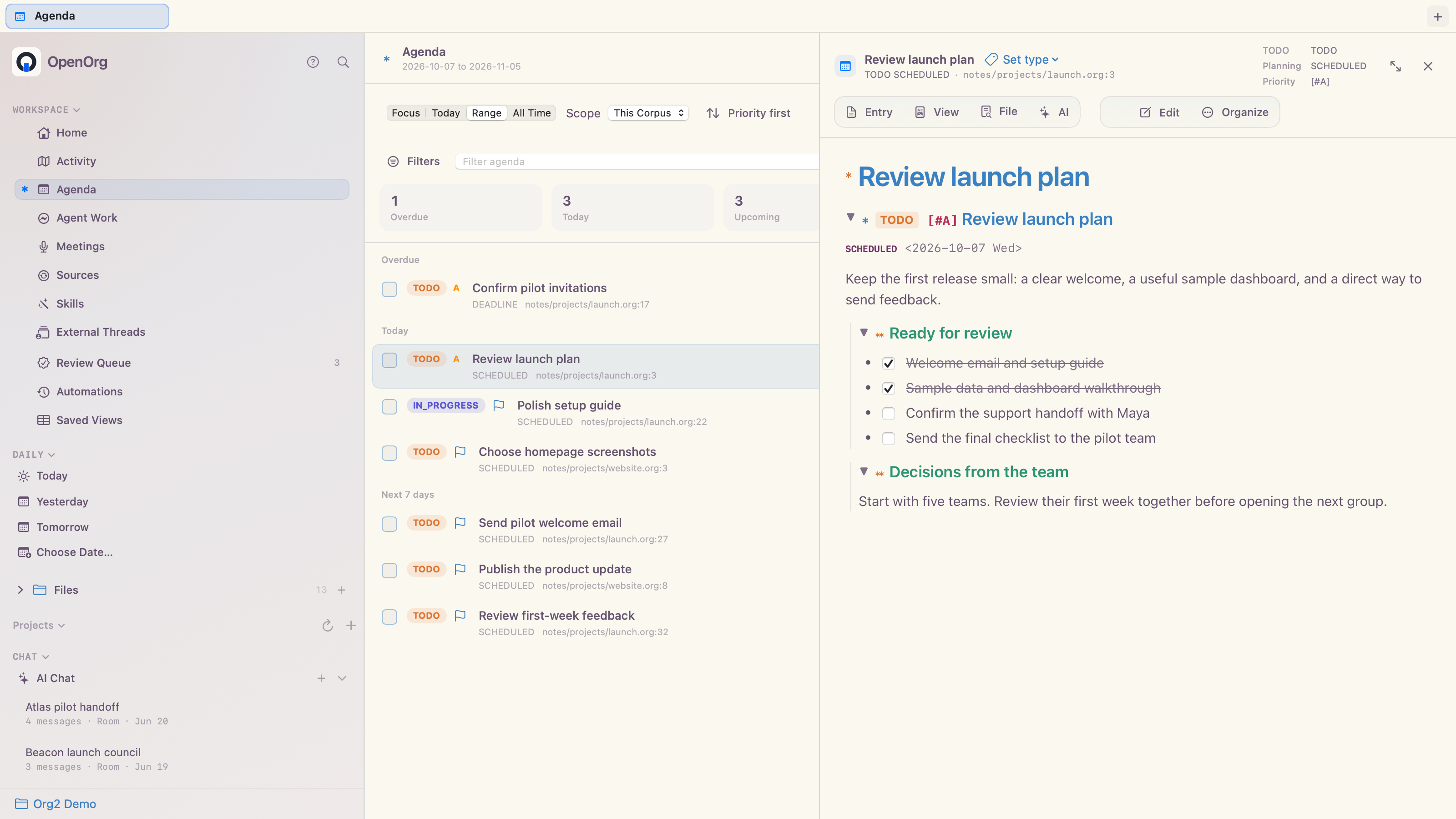
- Agenda
see scheduled work and deadlines across one or all open corpora. Filter by date, assignee, status, priority, topic, or text; mark items done, reschedule them, change priority, or open the source note.
- Files
expand the cached corpus file tree directly in the sidebar, or use the full tree and search surface for Org (
.organd.org2), Markdown, CSV, and generated workspace files. The + button beside Files, File → New File…, orCmd-Shift-Ncreates a note, draft, or scratch file: enter a name and a corpus-relative folder (defaultnotes, or the corpus'sroam.nodesDir). A name such asLaunch postbecomesnotes/launch-post.orgwith#+TITLE: Launch post, a stable:ID:and a:CREATED:timestamp; a name ending in.org,.mdor.txtis used verbatim. The sheet previews the path, refuses paths outside the corpus, never overwrites an existing file, and opens the new file.- Activity
see what is happening across the corpus at a glance (
Cmd-Option-N). Now lists what needs you (approvals, blocked runs, agents waiting on your reply), what agents are working on and where, scheduled automations, files changed today, and the files you were recently in. Several approvals from one run appear as one row with a count. Activity shows only current work: running or queued runs updated in the last day, blocked runs and runs waiting on you from the last week, and failures from the last three days. Older open runs are counted at the bottom of the list, with a link to Runs. Each section shows five rows until you choose Show all, and files under hidden folders such as.org2/are not listed as changes. Map lays the same signals over the corpus as a folder treemap: tiles are sized by files and activity and badged for attention, live agent work, schedules, and today's edits. Click a folder to zoom in and a file to open it. Every agent row has an Explain Status inspector (the ⓘ button or the row's context menu). It shows why the thread, run, approval, or automation is in its state, which host and runtime reported it, the last heartbeat or transition, whether that is Live, Cached, or Uncertain (for example, a laptop that stopped sending heartbeats mid-turn), and the exact blocking approval or question with Open in Review and Copy Command actions. The inspector reads the same structured explanation ascelorga activity explain. The Hosts section lists this Mac, headless servers and other Macs sharing the corpus, and SSH or endpoint agent harnesses, with an online, reconnecting, sign-in-needed, stale, offline, or on-demand state, active work and needs-you counts, last-seen time, where turns execute, which host owns automations, and which online hosts could take over (failover). A disconnected host's last-known turns stay visible but dimmed.- Agent Work
follow delegated runs, inspect outputs and citations, and handle decisions that need you. Review Queue and Automations also have direct top-level sidebar entries; press
Cmd-Shift-RorCmd-Option-Ato open them immediately.- Meetings
record or import audio and keep transcripts, summaries, decisions, and follow-ups together.
- Sources
connect supported external sources such as Slack, Notion, and email (IMAP) from one Add Source form, run a sync, or control its schedule.
- Skills
inspect workspace-authored agent procedures, open their
SKILL.mdsource, create a new skill, or move one to the Trash.- AI Chat
talk with any configured local, remote, hosted, or self-hosted destination using selected workspace context.
- Search and Quick Open
find text, tasks, files, people, projects, meetings, agent work, and chat threads without remembering where they live.
Open Settings → Appearance to choose a theme for each system appearance. System follows macOS and switches between your light and dark themes automatically; Light and Dark hold Celorga on one of them. Each theme appears as a small preview showing headings, TODO states, planning lines, links, inline code, and comments. Alongside the Celorga Paper and Night defaults are palettes adapted from popular Emacs themes, including Modus, Leuven, Solarized, Gruvbox, Spacemacs, Doom One, Catppuccin, Dracula, Nord, Zenburn, Monokai, and Tokyo Night. Themes change the workspace chrome, rendered documents, the Org source editor, and AI chat. They are preferences for this Mac and are not written to the corpus.
Click a sidebar section header (Workspace, Pinned, Daily, Projects, or Chat) to collapse or expand that section. Celorga remembers which sections are collapsed across relaunches.
You can open several corpora and switch between them from the sidebar. Agenda and Search can read across all mounted corpora, while writes stay scoped to the active corpus.
Use tabs to keep several documents or workspace views open without mixing their navigation history, selected surface, surface mode, row selection, or two-pane layout. An Agenda tab therefore returns to Agenda, while an Agent Work or Skills tab returns to its own view and selection. Press Cmd-T for a new tab and Cmd-Shift-[ or Cmd-Shift-] for the previous or next tab. Drag tabs to reorder them, or right-click one to duplicate, move, close, or close the other tabs.
Open Skills from the sidebar or press Cmd-Shift-K. Skills are ordinary SKILL.md files under .agents/skills/. Select a workspace-authored skill to edit it in the normal document pane, use New Skill for a safe starter file, and use the row menu to reveal it or move its whole folder to the Trash. Invalid skill files remain visible with a repair message instead of disappearing from the manager.
Celorga supplies its core operating guidance ambiently to every AI chat, so the reserved org2 infrastructure skill is not shown as a user workflow or slash command. Its corpus copy remains available to external skill-aware agents. The Skills surface is for additional procedures authored for this workspace.
From a TODO to agent work
Every open TODO heading in the rendered document shows ▶ Start work… on hover, and Start Work with AI… is in the heading's right-click menu and in Agenda's row menu. A small dialog first asks where to start: the thread (the heading's own thread, a new thread, or the AI chat thread you have open), the agent profile, the harness, the model, and the reasoning effort. A heading's own :AGENT_REF: takes precedence, an existing thread keeps its harness, and new-thread choices are remembered for next time. Starting work then:
creates and starts a durable
celorga runthat cites the heading,adds
:ORG2_RUN_ID:to the heading (and an:ID:if it has none) and moves aTODOto in progress,sends the chosen thread the task, the source reference, and the run ID.
The heading then carries a live badge: Working while the agent replies, Your turn when it has replied and the run is still open, Needs you when the run is blocked or waiting for approval, Failed, or Done. Agenda rows show the same badge. Click it to return to the conversation. Starting work on a heading whose run is still open reopens that thread instead of creating a second run. Agents that can use the Celorga CLI are asked to record an outcome under the heading and close the run with celorga run complete.
Write and read
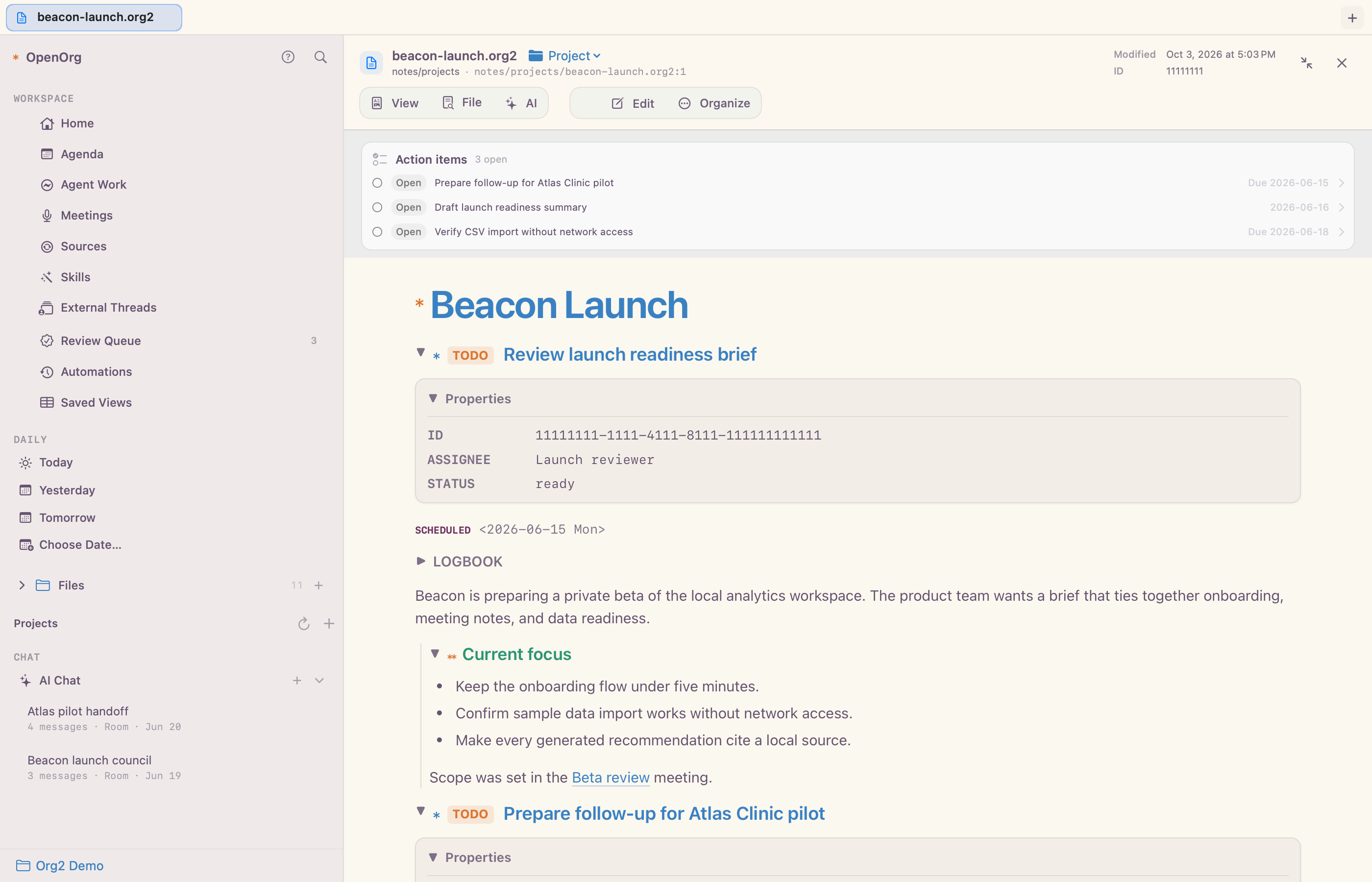
Celorga offers two views of the same document:
Read renders headings, links, properties, tables, citations, media, source blocks, and other Org structure.
Edit Source provides a native macOS text editor with syntax highlighting, folding, diagnostics, list continuation, TODO and planning commands, link insertion, undo, and safe saving.
While editing, type @ to link a corpus file or insert a date. The editor offers the same files as @ in AI Chat, ranked the same way: a bare @ lists files, and @plan or @reading_list narrows them. Choosing a note inserts an id: link labeled with its title when the note has a unique ID, and otherwise a file: link relative to the current document. @today, @tomorrow, @yesterday, month-day forms such as @july 10 or @jul 10 2025, and numeric forms such as @7/10 or @2026-07-10 also offer an Org date stamp such as <2026-07-10 Fri> and, when that day's daily note exists, a file: link to it; dates are listed before files. Use the arrow keys to choose, Tab or Return to insert, and Esc to dismiss. Dates without a year use the current year. Chat's agent destinations and @all are not offered in documents because they route chat messages rather than link to content.
Type /image at the start of a line or after a space to embed an image while you write. Choosing the command opens a file picker. An image from outside the corpus is copied into the corpus's attachments/ folder, so it renders on every Mac the corpus syncs to; an image already in the corpus is linked where it is. Celorga inserts a [[file:…]] link relative to the current note. Paths such as /Users/… and words such as and/or never open the command panel.
Checked list items, such as - [X] Ship the fix, are shown struck through and muted in the source editor and the rendered view. Nested items keep their own state.
An image link without a description, such as [[file:attachments/chart.png]] or [[/Users/me/Desktop/shot.png]], renders as the image in the rendered view, including when text surrounds it. A link with a description inside a sentence stays a text link. Relative paths resolve from the note's folder first, then from the corpus root. Notes can show images anywhere on this Mac through an explicit absolute or ~/ path, but such an image appears only on Macs that have that file; use /image to keep it with the corpus. AI chat replies show only images inside the corpus.
Prose is a third editor presentation beside Source and Split. It uses the same native editor and the same Org text, with a proportional serif face, generous line spacing, a readable centered column, and editing syntax concealed. Select a word, sentence, or paragraph, then use the Prose toolbar or the editor's context menu:
Add Alternative… enters another version. The new version replaces the text in the document; the original and any earlier versions stay recoverable. Step through versions with the toolbar arrows or
Control-Option-[andControl-Option-].Ghost fades text without deleting it; Revive brings it back, and Reveal Ghosts shows all ghosts at reading strength.
Move to Overflow parks the selection in a side panel. Restore puts it back at its original spot. If that spot can no longer be found, Restore at Cursor inserts it at the insertion point, and the fragment is never discarded implicitly.
Everything above is manual and local. The reversible state lives in one #+BEGIN_COMMENT block that starts with ORG2_PROSE_STATE_V1, visible in Source mode and hidden in Prose mode; it is added only when you first use a Prose action. Each record stores its text and a little surrounding context, and Celorga re-attaches it conservatively after ordinary edits. Ambiguous or stale records stay listed as unresolved in the side panel instead of attaching to different prose. A block that cannot be read is never rewritten: Prose actions turn off and the block's text is left as it is. Every Prose action is one undo step.
An optional split view keeps source and rendered preview visible together. Rendered tables can be filtered, sorted, and resized without changing the source. CSV files open in an editable table with a raw-text fallback.
Code and plain-text files linked from a note or an AI chat reply open in the detail pane as read-only source with syntax highlighting instead of being read as Org markup. The shared highlighter covers more than 60 languages and 300 extensions and file names across programming languages (Python, JavaScript/TypeScript, Swift, Go, Rust, Java, Kotlin, C/C++Objective-C/CUDA, C#, Ruby, PHP, Dart, Zig, Julia, Haskell, OCaml, F#, Elixir, Erlang, Lisp/Clojure, Lua, R, Scala, Perl, Nim, Crystal, Solidity, Verilog, VHDL, Fortran, assembly, and more), markup (HTML/XML/SVG, Svelte, Vue, templates, Markdown, LaTeX, diffs), configuration (JSON, YAML, TOML, INI.editorconfig, HCL/Terraform, Nginx, CMake, Dockerfile, Makefile, .env, .gitignore, Bazel, Gemfile/Jenkinsfile and similar named files), data and schemas (SQL, GraphQL, Protocol Buffers/Thrift, Prisma, Jsonnet), and shells (sh/zsh, PowerShell, batch). Every line stays addressable, so a link such as file:tool.py::27 scrolls to line 27, and long files are never collapsed. Source blocks in the rendered view use the same highlighter. Highlighting is native to the renderer and loads no script into the document. The Source editor highlights the same files natively as you type, using the language table generated from the shared highlighter, and turns off Org-only writing commands, spelling, and Org analysis for them.
HTML files (.html, .htm, .xhtml) open as rendered web pages in the detail pane, with relative stylesheets, scripts, and images resolved inside the corpus. The page reloads when the file or an asset beside it changes. Source or File → View HTML Source switches to the highlighted source and editor, Open in Default Browser hands the file to your browser, and Serve Folder serves its folder over loopback http and shows it in the detail pane.
AI chat's reviewed workspace edits can create and update .html, .htm, and .xhtml files, with the same preview, stale-write protection, and undo as notes. Link the saved file to open its rendered page.
Completed #+begin_src html blocks render directly in AI chat and the document reader as live previews, with an expandable HTML source disclosure and the usual copy button. Markdown HTML fences also work in chat. JavaScript runs, so a reply can be an interactive chess board, simulation, calculator, or chart instead of a picture of one. Scripts, styles, fonts, images, and data can load over HTTPS. Each preview grows or shrinks to fit its content, up to 1,600 points; #+begin_src html :height 480 fixes the height instead. The preview runs in an opaque-origin sandbox: its styles and scripts cannot read or change the surrounding document, the chat, the corpus, local files, or the app, and it cannot navigate the window, open nested frames, or submit forms to a server. Links inside it open in the detail pane. Plugin renderers, such as the chess PGN example, run their scripts in AI chat the same way. An unfinished streaming block stays source until its closing delimiter arrives. Ordinary HTML exports and the HTML file's Source view retain code rather than becoming previews. The iOS app shows these previews without running scripts.
Clicking a web link (http or https) in a note, a rendered document, a canvas, or an AI chat reply opens the page in the detail pane, the same way a file link opens a note, whatever the linked file type. Back and Forward move between the page and the documents you opened before and after it; Cmd-click opens the page in a new tab. The page bar has its own previous/next page, reload, and an address field that accepts full URLs, bare host names, local development servers such as localhost:5173 or a private-network address (opened over http), file paths, and otherwise runs a web search. Its server menu lists development servers already running on common local ports and Serve Folder…, which serves a folder (for example a built static app) read-only over http on 127.0.0.1 only; each served folder can be reopened or stopped. Open in Default Browser (the Safari button) opens the current page outside Celorga. Cmd-F opens a find bar for the page (Return or Cmd-G for the next match, Shift-Cmd-G for the previous one, Esc or Done to close it). Cmd-+ and Cmd-- zoom the page; the zoom percentage appears in the bar and clicking it returns to actual size. The ⋯ menu also has Find in Page…, Copy Link, and the zoom commands. The expand and close buttons at the end of the bar work as they do for documents: expand gives the page the whole window, and close hides the pane. mailto: and app links still go to macOS. Cookies and site data use the system web data store.
PDFs, images (PNG, JPEG, GIF, TIFF, BMP, HEIC, and WebP), and videos (MOV, MP4, and M4V) linked from a note or an AI chat reply open in the detail pane's native file view instead of an external app. Images fit the pane, with an Actual Size toggle; animated GIFs play. Videos use the standard macOS player controls. The view reloads when the file changes on disk, and Open in Default App remains available from the source menu.
Large source blocks, including run machine-state JSON, start collapsed in the HTML reader and preview. Open the source disclosure to read or copy the complete block. Ordinary HTML exports remain expanded.
Trusted Celorga plugins can add renderers for source-block languages. The shared
CLI HTML runtime powers both read mode and source preview, so the same plugin
also works in celorga export html without a separate Mac extension or app
rebuild. Renderer UI runs in a sandboxed, opaque-origin frame. See
Tooling reference → Plugins.
Plugins can also contribute context-aware actions. The document File menu
shows Plugin Actions for Heading and Plugin Actions for Note, and Activity
row context menus show actions for chat threads, runs, and approvals. An action
runs sandboxed without corpus write access; its output and any proposed changes
open in a review sheet with unified diffs, and nothing is written until you
choose Apply Changes. Lifecycle hooks (for example on run.blocked or
approval.requested) are dispatched by the corpus's automation host, and their
proposals appear under Needs you in Activity for the same review.
Celorga can export an ordinary document or selected subtree as a clean PDF. Document PDFs preserve styled headings and content while omitting heading stars, outline guides and their indentation, disclosure arrows, property drawers, and interactive controls such as Ask AI. It can also preview slide decks and export presentation PDFs. Publication uses a disclosure-safe copy that removes private workspace metadata and unresolved local references from the shared output.
Discover connections
Open a note or stable-ID heading, show its Context pane, and choose Graph. Choose 1 hop for immediate incoming and outgoing links or 2 hops for neighbors of neighbors. Click a node to center its neighborhood; drag nodes to arrange the drawing. The arrows point toward linked targets. Search the visible node list and use Open source or a node’s arrow button to navigate to its exact source heading. Current note resets an explored neighborhood to the open document. Notes without IDs display an empty discovery state; add a #+ID: file keyword or an ID property in the heading’s drawer, then refresh.
Unlinked mentions lists exact title and alias occurrences in other files. Use the cited file and line to inspect the source, then click Link to replace that one occurrence with an explicit ID link. When a title or alias identifies several notes, Choose target lists each destination with its file and ID. This choice is always explicit. If the source or target changes before linking, refresh the panel and review the occurrence again. Finish an active source edit before linking into that file.
The panel scans only the active corpus and observes its ignorePatterns. Archives, hidden/build directories, sync conflicts, and symlinks are excluded. Neighborhoods are bounded to 60 nodes and mention results to 200 occurrences; a visible message identifies a truncated result. Refresh rescans source files. Existing links, quoted text, inline code/verbatim, URLs, indented fixed-width text, blocks, drawers, heading TODO/priority/tags, and generated Backlinks sections are protected by shared linkify rules. Heading titles remain linkable. Only actual note and heading IDs identify graph targets; IDs shown inside examples do not. Heading IDs remain available when planning lines precede their property drawer. Documents with invalid syntax are skipped until repaired. Broad semantic suggestions remain in the existing review-only linkify report. The graph and mentions are disposable projections; new links are ordinary source text and work in CLI, editors, and exports.
Spatial Canvas workspaces
Enable Experimental Features in Settings to show Canvases in the left navigation. Open Canvases and choose New Canvas… to create a .canvas file inside the active corpus. Existing Canvas files appear there and open directly as spatial boards. Import Canvas… copies a JSON Canvas document into the corpus; its original remains unchanged. The board uses the open JSON Canvas 1.0 format, so the file can move between compatible applications.
Use Add card for text, a note or stable-ID heading, an image or attachment already inside the corpus, a web link, or a group. Drag a card’s header to move it and its lower-right handle to resize it. Select a card and choose Edit to change text or a link, or Color to distinguish it. Markdown text is preserved in the file and displayed as text on the board. Imported node order is retained in the JSON file; groups are displayed behind connections and other cards. Moving a group moves its frame, not its contents.
Select a card, click Connect, then click the destination card. The board saves the connection immediately. The ellipsis menu lists connections; select one to edit its label, endpoint sides, arrow ends, and color, or delete it. Deleting a card also removes its incident connections. Pan by dragging empty space or enable the hand tool to pan across groups and cards, use zoom buttons to inspect details, and choose Fit to see the whole board.
Open source navigates notes and headings to the runtime-resolved source. When a note or heading has an ID, cards added through the note picker retain that stable ID reference, so a renamed source continues to resolve. Images are previewed locally; web links open only when clicked. Missing sources, ambiguous IDs, unsupported URL schemes, and unfamiliar node types stay visible as placeholders. Canvas never follows resource paths or symlinks outside the active corpus. The note picker excludes raw captures, hidden files, archives, and configured ignores. Only actual note and heading IDs resolve; IDs displayed inside source blocks or examples do not create targets. Planning lines before heading properties remain supported, and previews use the canonical note or subtree while omitting example blocks and metadata.
Each completed move, resize, or edit saves through the shared runtime with the file’s revision. A concurrent change is refused; reload the board before retrying. An editor that reports an error offers Reload board and keep draft, preserving your pending text and settings for review before saving again. Editor inputs stay locked while a save is pending. The ellipsis menu’s Export Canvas… writes an exact copy to a new file, including unknown fields. Import and export preserve the original JSON bytes; edits preserve unknown top-level, node, and edge fields while formatting JSON. Referenced attachments remain separate files and should travel with the corpus. Canvas files under raw/ or hidden runtime directories cannot be edited.
Publish a document
Open an Org document, open its document menu, and choose Publish Document…. The same sheet also opens from /publish document in AI Chat. Choose the entire document or the subtree at the current reading/editing position, then inspect the disclosure preview before publishing.
The publish sheet separates the destination from the format:
Local Link can serve a read-only Web page, fixed-layout PDF, or compiled Beamer slides (PDF). Web pages use the same fluid, bounded document layout as Celorga's reader; long text wraps, charts shrink with the viewport, and wide tables scroll inside the page instead of widening it. The destination creates a high-entropy secret URL from the Mac and persists its sealed artifact locally. Publishing the same document or subtree and format again updates that URL in place, including links created before stable republishing was introduced. Devices must be able to reach the Mac on the local or private network. Celorga must be running for a link to be reachable, and active links resume at the same URL after Celorga relaunches. The initial server uses unencrypted HTTP, so use it only on a network you trust. Open Settings → Sharing to see every source file, format, and shared chat thread currently hosted, open or copy a link, stop one, or stop all of them.
Google Drive can create an editable Google Doc, Google Slides deck, or Google Sheets workbook, or upload a fixed-layout PDF. Slides use the selected content's slide headings. Sheets create one tab per Org table and refuse a selection with no tables. The optional folder ID selects a Drive folder; otherwise Google places the file in the connected account's default location. After the first successful publish, Celorga saves that format's Drive file ID, link, guarded version, and publish time in the selected document or subtree property drawer. The green Google Drive badge beside the document title reopens or copies saved artifacts, and publishing the same scope and format again updates the linked file instead of creating a duplicate. OAuth credentials remain in macOS Keychain and are never written into the source. Google Drive owns sharing and identity. Connect Google Drive opens Google's consent page in the default browser using the desktop loopback and PKCE flow, requests only the per-file
drive.filescope, and keeps the refresh credential in macOS Keychain.
Web pages and fixed-layout PDFs embed deterministic chart and plot visualizations. A chart's source table must be inside the published document or selected subtree; publishing never follows a chart reference back into unselected corpus content.
Distributed Celorga builds include the app's registered Google OAuth client, so normal setup is one click on Connect Google Drive followed by consent in the system browser. Users do not create a Google Cloud project or import credentials. Use a custom OAuth client remains available as an advanced option for self-built or separately branded deployments; it accepts the JSON for a client of type Desktop app, not Web application. Celorga masks the paired client secret and stores it only with the resulting OAuth credential in macOS Keychain. Google passwords and OAuth tokens are never pasted into Celorga. See Google's desktop OAuth guide, Google's OAuth overview, and Drive scope guidance.
Property drawers, TODO state, tags, planning and clock data, comments, commented subtrees, dynamic blocks, table formulas, raw HTML, internal IDs, unresolved local links, and runtime data are removed before either destination receives content. Referenced supported raster images are embedded in the sealed artifact.
Share an AI chat thread
Click Share in the AI Chat header, choose where to share from, then click Create Link to host the selected thread as a read-only web page. This Mac uses the same local server as Local Link documents. A paired headless Celorga server hosts the page itself, so the link stays live while the Mac sleeps. The link is copied when it is created. You can also right-click a sidebar thread and choose Copy Share Link. The page uses your Celorga appearance: with System, it follows the reader's light or dark preference using your selected light and dark themes, and with Light or Dark, it uses that one theme. The link stays live. While Celorga is running, new messages, title changes, theme changes, and a "working on a reply" indicator reach open pages within a few seconds without a reload. The URL stays the same across relaunches until you choose Stop Sharing in the share popover or sidebar menu, or stop the link in Settings → Sharing.
The page includes only delivered conversation text, assistant replies rendered as Org, and image attachments of up to 4 MB. It leaves out attached workspace context, reasoning, tool activity, queued or failed messages, and live embeds. Links into the workspace are shown as plain text. Only web links remain clickable. The page runs one fixed script, which checks the same URL for updates. Like other local links, it uses unencrypted HTTP and a high-entropy secret URL, so share it only on a trusted local or private network. While Tailscale is connected, links hosted by this Mac use its Tailscale address instead of its local network name. Links copied earlier keep working under either address.
Shared web pages and chat threads include Open Graph and Twitter card tags (title, site name, and a short summary), so apps that show link previews can display a card when a link is pasted. A document's summary is its #+DESCRIPTION or its first paragraph. A chat's summary is its opening message and message count. The preview shows only text the page already shows. The app showing the preview must be able to reach the link. iMessage and WhatsApp fetch previews from the sender's device, so they work on the same private network or tailnet. Slack and Discord fetch previews from their own servers, so they can show a card only when the link is publicly reachable. A document link created by an earlier Celorga version gets the tags when the document is published again.
To host links on a server, run celorga server pair on the server, then open Settings → Sharing → Celorga Server on the Mac. Paste the pairing link, or enter the server's address and six-digit code, then click Pair. The Mac stores its access token in the Keychain. Share new thread links from sets the default location, and the share popover still lets you pick either location each time. The server renders the page from its own synced copy of the corpus with the Mac's appearance settings. A thread must reach the server through corpus sync before the server can share it. Copy Share Link in the sidebar reuses an existing link, or creates one at the default location. Stop Sharing stops the thread's links in both places. Forget Server stops the server's links, revokes the Mac's access when the server can be reached, and removes the pairing.
Agent work and approvals
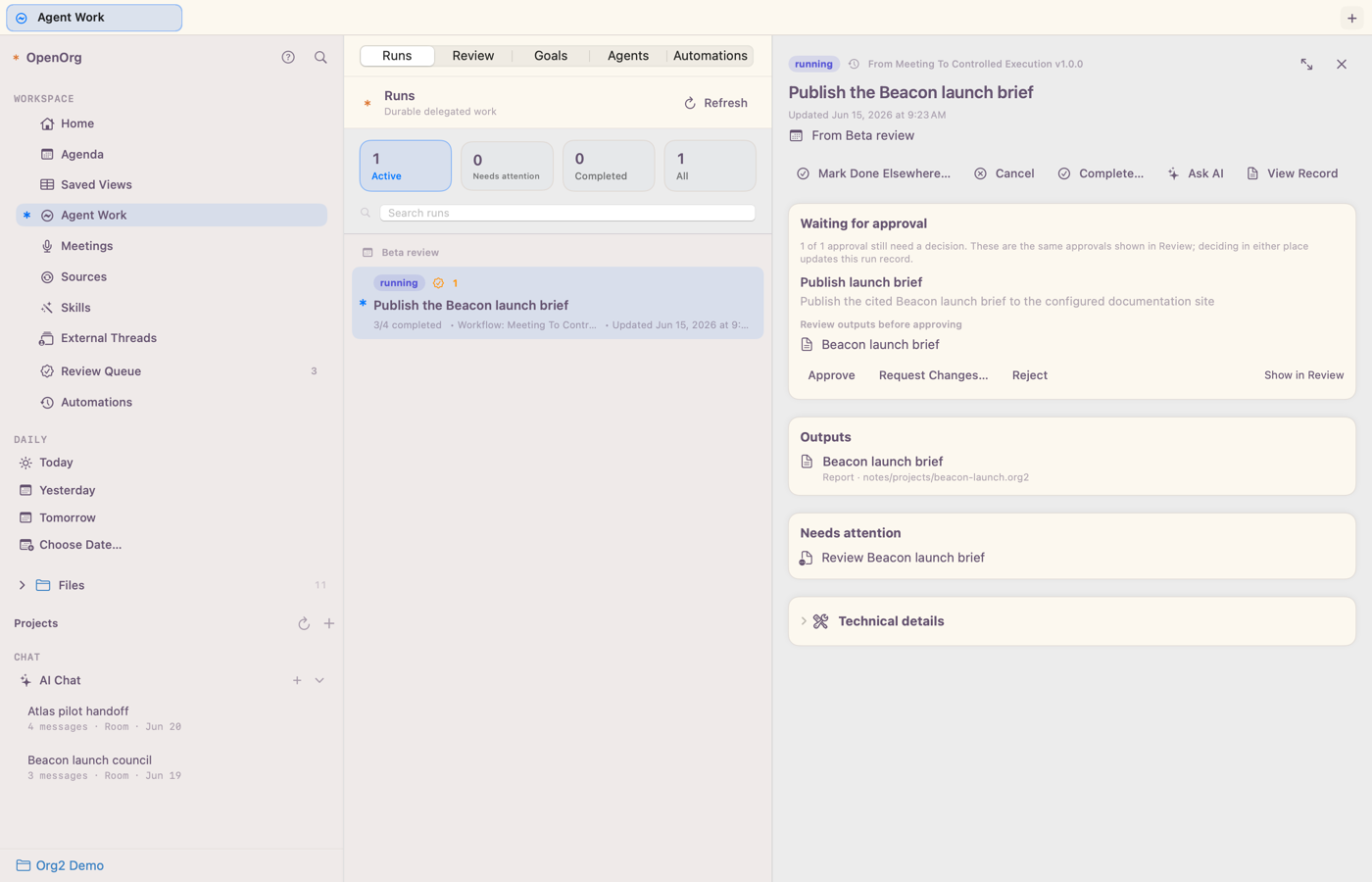
Agent Work keeps each delegated job together with its goal, context, progress, outputs, citations, checks, and final outcome. The Runs view shows what is active, blocked, complete, or failed. The Review view collects the specific decisions that require a person.
You can approve, reject, request changes, discuss, or record that work was completed elsewhere. Batch selection applies independent decisions concurrently, coalesces the visible queue update and reconciliation, and still serializes writes that target the same canonical run or source file. Review material stays inspectable after a decision, providing a durable record of what was proposed and what happened.
The Automations view turns a prompt, optional agent profile, schedule, and any enabled AI destination into an ordinary file under workflows/. Its scheduler strip identifies the corpus-wide host responsible for scheduled runs and links to the same read-only ownership information in General settings. Celorga checks schedules while it is running, creates a durable run before dispatch, catches up the latest missed occurrence after sleep or relaunch, prevents overlapping attempts, and keeps one destination-neutral history. The toolbar and row menu can delete a selected definition after confirmation without deleting its prior run history. Fuller reusable workflows use the same files and add inputs, steps, validation, outputs, and approval boundaries. See Automations and workflows for the full lifecycle.
AI chat and agents
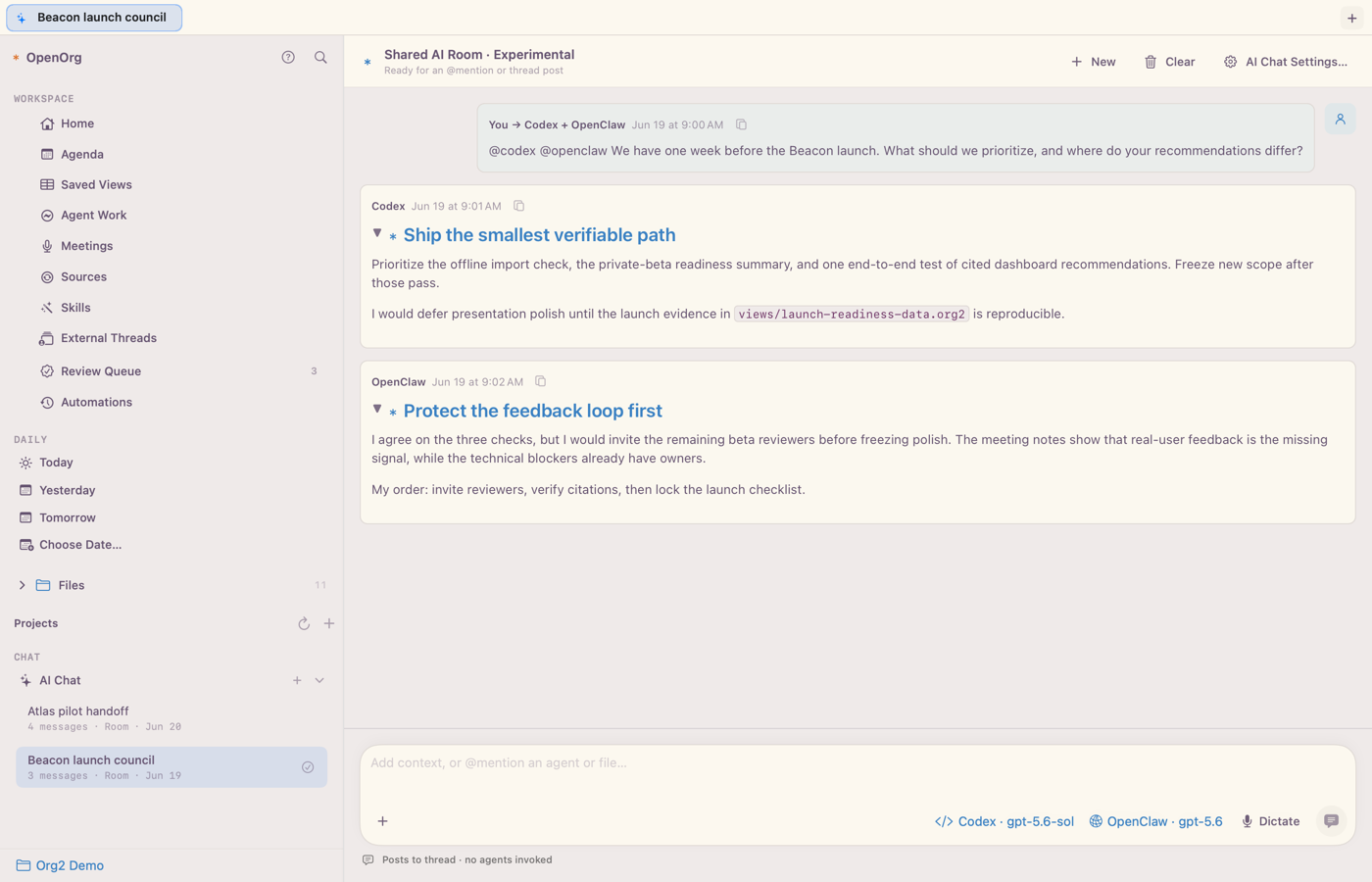
AI is optional. Celorga does not require a Celorga account, and ordinary note, Agenda, search, meeting, and document features work without an AI destination.
In Celorga → Settings… → AI Chat, you can configure named destinations including local Codex, local Claude Code, local or SSH-hosted Pi and OpenCode, Remote Codex over SSH, OpenClaw, OpenAI-compatible providers, Anthropic, OpenRouter, or Ollama. A remote harness destination names an SSH host and the writable Celorga corpus checkout on that runtime; Celorga expands ~/ on the remote Mac and runs the selected harness in that checkout without copying its credentials into Celorga. Remote Codex starts or attaches to Codex's managed daemon through SSH; legacy WebSocket destinations remain compatible but are not offered as a normal setup choice. API keys are stored in macOS Keychain, not in the corpus.
The chat header’s AI Chat Settings… button opens this settings pane directly. The composer combines model and reasoning effort in one compact pill. Open it to choose a model, adjust supported effort levels with a stepped slider, or reset effort to its default. The destination remains alongside it; narrow panes collapse its label, and very narrow panes put the controls above the send actions. Shared rooms use a compact Models menu for their per-destination choices. To configure the built-in OpenClaw gateway, choose Edit beside its destination in Settings, then Configure Gateway…; gateway connection and pairing controls appear only in that editor. Brief and inactive-thread preferences live in the shared Conversations section.
Enable Experimental features in Settings → General to reveal the opt-in Workspace tools (experimental) setting in each direct-provider destination under AI Chat. Experimental features are off by default and apply across workspaces on this Mac. Turning them off hides these controls, stops any active bundled agent turn, and returns subsequent turns to ordinary context-only chat; saved per-destination tool preferences are retained.
The bundled agent runs a small TypeScript executor using the Node runtime already shipped inside Celorga; no separate agent harness or Node installation is required. The executor can search the active corpus, read effective file text (including unsaved editor drafts), and propose whole-file edits. Every apply request opens a native review of the original and proposed text. Cancel declines edits for the rest of that turn. Celorga binds tools to the originating turn and authorized corpora, and rechecks the exact preview's hashes before writing. Reviewed file creation can target new nested directories inside the active corpus, including corpus skill folders. Reads and previews do not create directories; applying the reviewed edit creates any missing parents. Paths outside the corpus, including symlink escapes, remain rejected.
This prototype supports text conversations with tool-capable OpenAI-compatible, Anthropic, OpenRouter, and Ollama models; support for an endpoint does not guarantee that every model can use tools reliably. Configure a model and endpoint in the destination, enable workspace tools, then try asking for a cited answer and a small task edit in a disposable corpus. Cloud credentials use the existing Keychain configuration. Local Ollama requires a separately running server and an installed model.
Only one bundled turn runs at a time. Replies arrive after each model step, with tool progress between steps; token streaming, automatic context compaction, restart recovery of an in-flight tool loop, attachments, general shell/browser access, and unattended edit approval are outside this prototype. Stop terminates the helper; the existing chat history and successfully applied file changes remain in Celorga. Each turn has a 12-step limit, a 48-tool-call limit, a 4 MiB context/response limit, and a two-minute timeout per model request. Workspace tools are disabled by default, preserving context-only chat for existing destinations.
To use Claude Code, install it and sign in with claude auth login, then enable Claude Code in AI Chat settings. Celorga starts the local CLI, streams its replies, and resumes the same Claude Code session on later turns. No Anthropic key is copied into Celorga. The Local Agent Permissions setting maps to Claude Code's Plan, Accept Edits, or Bypass Permissions mode.
To use Pi or OpenCode locally, install and authenticate its CLI, then choose the corresponding adapter under Add Destination. For another Mac, add a Remote Pi over SSH or Remote OpenCode over SSH destination with an SSH host such as press.local and the corpus path on that host. Celorga loads OpenCode's available models from that destination; if OpenCode reports an empty catalog, Celorga reloads its background service once and retries. The settings list contains only configured destinations: saving adds one, while Delete removes one after confirmation. A destination referenced by an existing chat must remain configured until that chat is deleted. Celorga streams JSON events from the harness and stores its native session ID so later turns resume the same conversation. Local Agent Permissions controls the tools or permissions exposed for each turn; SSH connectivity and harness credentials remain owned by the remote account.
Add files, headings, selected items, images, PDFs, audio, or other supported attachments as explicit context. Typing @ finds corpus files and destinations. @today, @tomorrow, @yesterday, and dates such as @july 10 add that day's daily note as context when the note exists. Chat text has one selection region across the bounded visible transcript, so a drag can copy across paragraphs, bullets, and consecutive messages without mounting an unbounded history. Selection highlights update directly during dragging, using the displayed native glyph layout without rebuilding the transcript on each pointer movement, including inside agent rounds. Copy buttons on snippets and messages show a green check for two seconds after a successful copy, then return to the copy icon. Copying again restarts that confirmation. Copying a table, either by selecting its cells or using the message’s Copy button, supplies a styled HTML table for rich-text destinations such as email and an aligned Org table for plain-text editors. In a shared room, mention a destination by name or use @all; every reply remains attributed to the agent that produced it. Messages without an @mention go to the room's default agent: the agent of the thread the room was forked from, or else the first agent the room addressed. An @mention routes only that message and never changes the default. Choose a different default, or No agent (post context only), from the composer's Default menu; the choice is saved with the thread. Agents can @mention each other too: a reply that mentions another agent in the room starts that agent's turn, and its answer is captioned "requested by" the first agent. Mentions inside code or verbatim text are ignored. The Default menu's Agent turns in a row setting caps how many turns agents can start for each other before you reply (four by default; Off disables hand-offs); your next message resets the count.
Click the reply arrow beside a message's Copy button to answer that message specifically. The composer shows a removable ↩ Author: first line pill, and the sent prompt quotes up to 1,500 characters of that message ahead of your text, so the agent knows what you are responding to. Replying again replaces the earlier pill. The sent message keeps the reply pill in the transcript.
While an agent works, the status line reports quiet periods. After two minutes without output it reads Waiting for …. Most runtimes are shown as possibly stalled after ten minutes of silence. OpenCode streams nothing during a long tool call such as a build or test run, so a quiet OpenCode turn keeps reading Waiting for OpenCode and keeps animating while its process is alive.
Pasting 8,000 characters or 100 lines into AI Chat creates a Pasted Text.txt attachment so you can keep typing smoothly. Click its chip to preview it, or use its remove button before sending. Shorter pastes remain inline. UTF-8 plain-text attachments are included in full as user text when sending or steering any AI runtime; the stored conversation retains the compact attachment.
Replies render charts the same way documents do. A table followed by a chart block (Org #+begin_src chart or a Markdown ```chart fence), or a chart block with its table rows inside it, becomes an inline chart with hover tooltips, a crosshair, keyboard navigation, and legend toggling, colored from the selected theme. Markdown pipe-table delimiter rows such as |---|:---:| are read as table rules. Celorga tells agents to prefer chart blocks over generated chart images.
Agents can display images directly in their replies with an Org image link on its own line, such as [[file:images/qr.png][QR code]] or [[https://example.com/chart.png][Chart]]. Image-only replies and images alongside prose both render inline, including in agent rounds. Relative paths resolve against the active local corpus. Because the agent may run on a different machine than the one you are chatting from, Celorga tells it your machine name and asks it to save generated images inside the active corpus and link them with corpus-relative paths, so they render wherever the corpus is synced. Celorga includes this guidance in the agent’s context. Tool output and opening another application do not by themselves attach an image to the conversation.
Pass to Agent menus list active portable agent profiles from the corpus. Choosing one writes its readable name as ASSIGNEE and preserves its stable AGENT_REF plus primary GOAL_REF when available; the configured legacy handoff target remains available as a fallback.
Threads and their context are stored locally with the corpus. Running threads are grouped above recent threads in the sidebar so active work stays visible. Right-click a sidebar thread and choose Copy Thread ID to copy its stable thread UUID, usable with celorga thread commands; this is independent of the runtime’s session ID. Hover or select a sidebar thread to reveal its Settle action; settled threads show Reopen instead. The AI Chat header also has a Settle button for the open thread. Settling from the header keeps the thread open and changes the button to Reopen. To clear out scheduled work in one step, right-click an Automation: thread (or the sidebar's AI Chat row) or open the home pane's More chat actions menu and choose Mark All Automation Threads Read & Settled; it marks every automation thread read and settles those that are not still running in a single update. The selected thread keeps its action visible even when the pointer moves away. The action keeps its space in narrow sidebars so hovering does not shift the title. Long-running OpenClaw turns can stream progress, be stopped, and reconnect after an app restart when the connected runtime supports it. Remote OpenCode (over SSH) turns keep running on their host if Celorga quits, crashes, or is rebuilt mid-turn; the next launch replays their progress, delivers the reply, and keeps Stop working. A turn that cannot be recovered is shown as interrupted with Retry instead of staying busy. When AI Chat is already open beside a document, Ask AI adds that file or block to the open conversation instead of creating another thread.
Persistent Codex and OpenClaw sessions receive the full Celorga recovery context, with a bounded thread continuation, when a runtime session starts or rebuilds after compaction. Later turns send only changed workspace-context sections; the runtime already owns the conversation history. Stateless HTTP and direct-provider requests instead receive one token-budgeted history plus the current request in full. Shared rooms maintain a separate delivery cursor for each destination and combine a rolling summary with bounded unseen messages while preserving the current request verbatim, so a slower destination can catch up without replaying the whole room to every participant. Each saved assistant response can retain provider-reported input, cached-input, output, and total token usage together with Celorga estimates for static instructions, project context, transcript, room, and attachment components.
If chat history cannot be loaded safely, Celorga pauses transcript writes and shows a recovery notice with a Retry button. Retry after synchronization finishes or missing files are restored. Recovery can reconcile verified thread history from incomplete or divergent synced commits; recent unreferenced thread and attachment files receive a 30-day grace period before cleanup.
The iOS app can relay Codex, Claude Code, Pi, OpenCode, and other configured chat destinations to a paired Mac over Tailscale. The selected host remains responsible for corpus access and model connections. A headless Celorga server on another Mac can keep chats and scheduled automations available while the laptop is away. Settings → AI Chat → Execution → Run new agent turns on can hand this Mac's new turns to that server so the Mac becomes a detachable client: it shows live progress, can quit, sleep, or update without interrupting turns, and runs turns itself whenever the server is offline or restarting. When you quit or install an update with turns running, Quit When Turns Finish lets them complete first while new turns go to an online server. See iOS setup for the current beta and pairing path.
See Agent quickstart for permissions, runtime integration, durable runs, and automation details.
Meetings and external sources
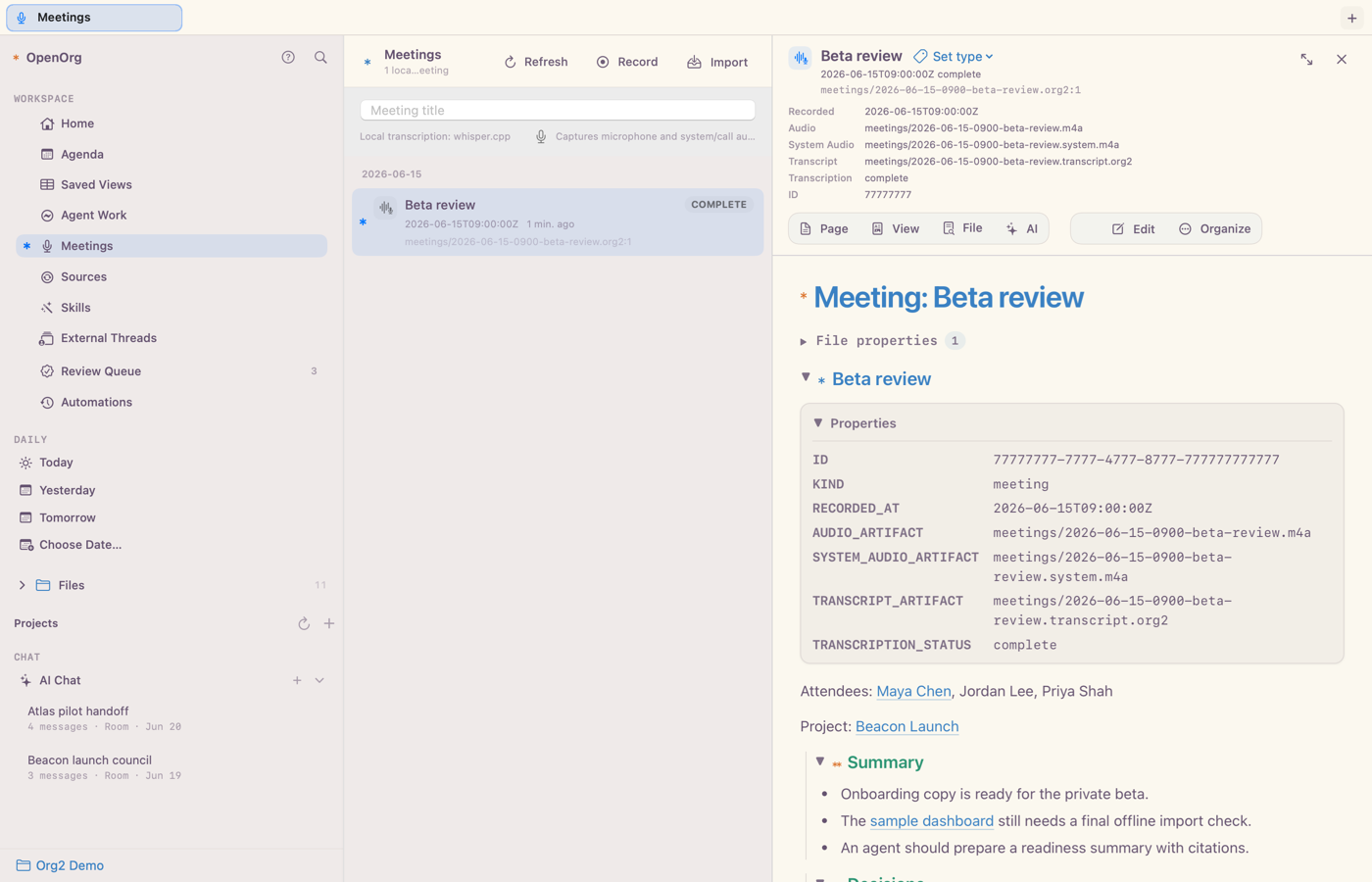
Meetings can be recorded in Celorga or created from an existing audio file. Choose local Whisper, macOS Speech, Fluid Voice, or a custom local command for transcription. The resulting audio, transcript, metadata, and notes remain visible in the corpus. A freshly transcribed meeting can optionally be sent to a named AI destination for a summary or follow-up workflow.
While a meeting is recording, a pill in the window toolbar shows the state on every page: REC with the elapsed recording time (paused time excluded), Paused, Stopping, or Transcribing until the meeting is saved. Click the pill to open Meetings; its buttons pause, resume, or stop the recording without leaving the current page.
The Sources view manages supported Slack, Notion, and email connections. Add Source offers the same form for every source type: Slack (workspace ID, read mode, channels), Notion (read mode, teamspaces), and email (IMAP server, port, TLS or STARTTLS, user name, mailboxes, optional SMTP server), each with an initial window and its credential. Settings are recorded in org2.json; the Slack bot token, Notion integration token, or email password is stored only in Keychain. Configure… edits an existing source with the same form, and Set Up with AI optionally hands the setup to an AI chat instead. Email sync reads new mail without marking it read. Each connector can run on demand, pause or resume its schedule, and use a repeating interval or daily time. Imported material is staged for review rather than silently promoted into your canonical notes, and credentials remain outside the corpus.
Saved property views
Choose Saved Views in the workspace sidebar to open live tables and cards made from the active corpus. The landing page explains the feature without scanning the corpus. Describe a result in plain language, such as “Show my unfinished project tasks grouped by project,” or choose an example; Celorga turns that request into a visible draft and queries only its selected folder. Review the matching rows before saving. Existing views appear immediately and run only when selected.
Use Edit View for the advanced builder. Choose Headings, Notes, or Both, optionally narrow the corpus-relative folder prefix, and list columns separated by commas. Built-in columns are title, document, file, kind, todo, tags and id; other names select case-insensitive property keys. Use Add Filter for equality, containment, regular-expression matches, presence, numeric or date conditions, or active/terminal TODO state; choose all/any matching, sort fields, and an optional grouping field. Filter values accept date variables such as {today}, {yesterday}, {today-7d}, {today+1m}, {month} and {year}. The view stores the variable, not the date, so file date is on {today} keeps showing today's dated files tomorrow. Date is on/before/after compares the first YYYY-MM-DD in the field, so dated file names, Org timestamps, and properties such as CREATED all work. Matches regex is case-insensitive and may embed variables, as in ^daily/{today}. Asking for “files created today” or “notes from the past 14 days” drafts the same variable-based filters. Apply View previews the new result before Save View persists it. New and Duplicate create separate definitions. Refresh reloads a saved definition and its current source rows.
Click a property cell in either layout, edit the value, choose Preview Change, then Apply to Source. The preview shows the old local value and proposed value. An arrow marks inherited properties; editing them creates an override on the selected note or heading. Empty text creates an explicit empty value. Source links open the exact file and line. Save or cancel an open source editor before making cell edits. A stale source or saved definition fails with a refresh message instead of overwriting newer work. Built-in fields, stable IDs, ORG2_ runtime metadata and immutable raw/ imports remain read-only here.
Definitions are ordinary views/ID.org2-view.json files using org2:property-view:v1. Copy one into another corpus's views/ directory, keeping its filename matched to its ID, to reuse it there. Views contain relative scope and presentation/query choices, with no private database or machine paths. Rows are derived on Apply/Refresh and after a successful edit; a saved view never copies note bodies. The default builder shows at most 500 rows and indicates truncation. The CLI supports limits up to 5,000 and multiple sort fields. See Tooling reference for the portable schema and automation commands.
Data notebooks and charts
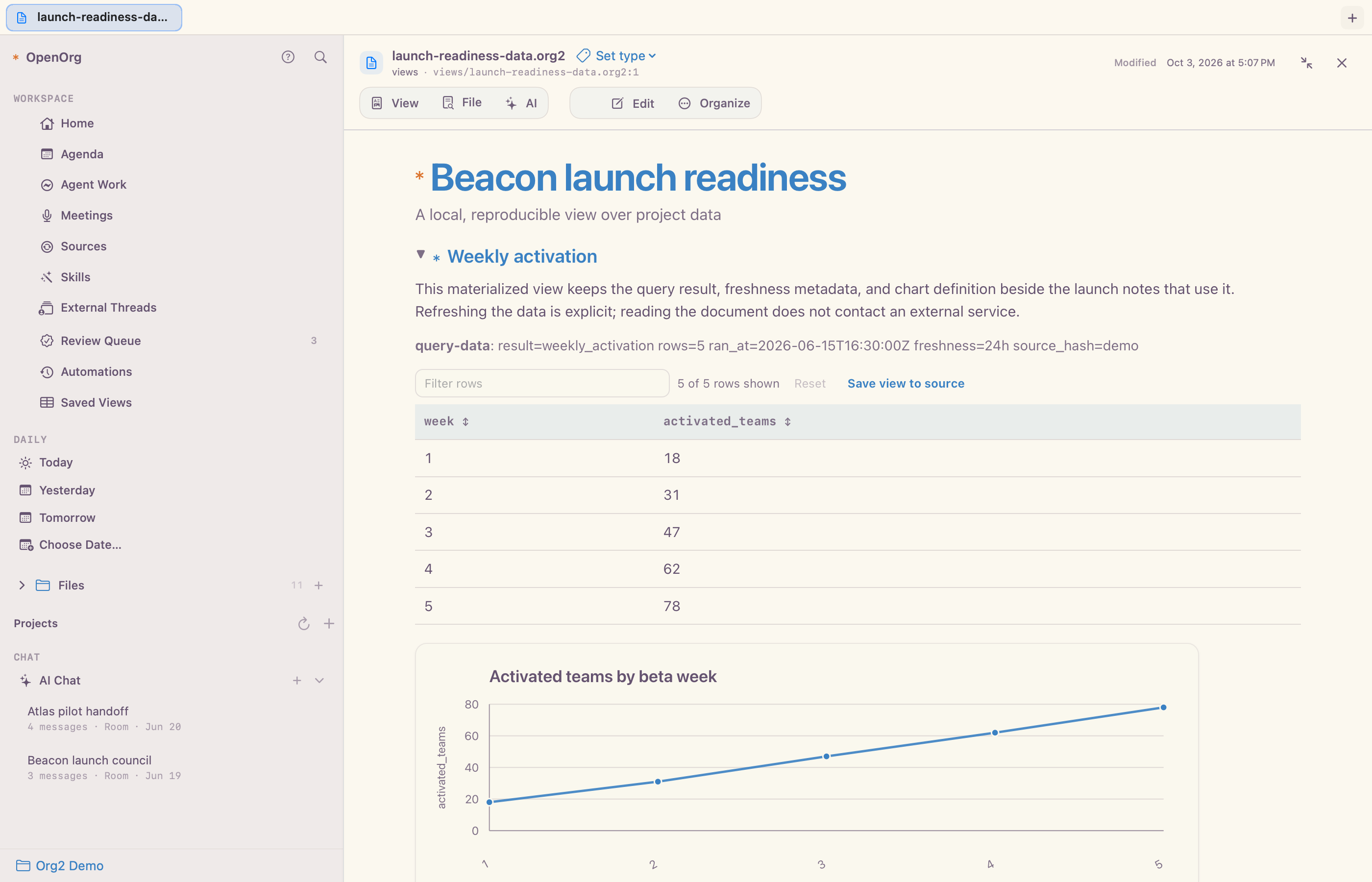
With Celorga, Org documents can connect notes to CSV, Parquet, JSON, ClickHouse, or Metabase data, define SQL views, materialize results, and render charts. Refresh is explicit: opening a note never runs a remote query. Results retain source and freshness information so readers can see where the numbers came from.
Privacy and security
Your corpus is an ordinary folder on your Mac. Celorga does not upload it to a Celorga service. Information leaves the Mac only when you use a destination or source provider you configured, so its retention and data-use policy still applies.
Secrets belong in macOS Keychain or another protected local store. Celorga also supports GPG-backed :crypt: subtrees when individual sections need encrypted storage. Consequential external actions can be held for explicit approval before execution.
Back up or sync the corpus with a file-oriented tool you understand, such as Git, Time Machine, iCloud Drive, or Syncthing.
Keyboard essentials
Cmd-1throughCmd-6open the main workspace surfaces. Every other Workspace sidebar entry has one too:Cmd-0Sources,Cmd-Shift-KSkills,Cmd-Shift-RReview Queue,Cmd-Option-AAutomations,Cmd-Option-EExternal Threads,Cmd-Option-VSaved Views, andCmd-Option-CCanvases (with Experimental Features on). Saved Views and Canvases are listed last in the Workspace section.Cmd-Popens Quick Open.Cmd-Kalso opens Quick Open outside the Source editor; inside it,Cmd-Kinserts a link. With an empty query, files you open often and recently are listed first; while searching, they win close matches.Cmd-Returnopens the selection in a new tab. Recent-file history is kept per corpus on this Mac and is never written to the corpus.Cmd-[andCmd-]go back and forward through the documents and views you visited in the current tab.Hover a link in a rendered document to preview the target heading or file;
Cmd-click a link to open it in a new tab.Cmd-Ctrl-Returnopens global capture.Cmd-7,Cmd-8, andCmd-9open today's, yesterday's, and tomorrow's daily notes in the document pane. The Daily sidebar links and Choose Date… (Cmd-Shift-7) use the same behavior: they preserve the current first pane, including the selected AI chat and its draft, and do not open the Files list. If the document pane is closed, it reopens; an already closed first pane stays closed. With automatic daily note creation disabled for the workspace, a missing target shows an explicit creation button instead of writing a file.Cmd-Aselects visible items in Agenda, Files, Runs, or Review;Shift-Up/Downextends the selection.Cmd-Fsearches the active pane.Cmd-Rrefreshes the workspace when you need a manual reconciliation. Full refreshes of large corpora may take longer than 15 seconds; Celorga lets them continue without reporting a timeout error. PressCmd-Ragain or click the stop control to cancel. Actual refresh errors are still reported.Cmd-Topens a tab;Cmd-Shift-[andCmd-Shift-]move between tabs.
In AI Chat,
Returnsends or queues while a turn runs;Shift-Returninserts a newline.Cmd-Return(alsoCmd-Shift-Return) steers a running turn, or sends normally when idle. Guidance sent just after a turn starts, including Steer from iOS, waits briefly for the runtime's live session rather than becoming a queued follow-up; it is queued only if the turn ends first. In a shared room, a steer reaches the agent whose turn is running when the message addresses that agent, by@mentionor as the room's default agent; guidance for a different participant, or for several agents at once, is queued for its own turn. When suggestions are visible,Up/Downselects andTaborReturnaccepts a suggestion. Typing a bare/lists every command, starting with your workspace's own agent skills, and the list scrolls to keep the selection visible.Cmd-Ncreates an AI thread;Cmd-Shift-Ncreates a new file.In Agenda,
wschedules next Monday andmschedules the first of next month; uppercaseWandMset the corresponding deadline.
Use Help → Keyboard Shortcuts… (Cmd-/) for the full reference, including the Source editor commands. Shortcuts depend on the focused pane or editor; bare uppercase letters (such as J) in the reference mean Shift.
Full refresh updates the selected document first, then runs up to two independent refresh jobs concurrently. File catalog and assigned-work refreshes stay ordered. Agent-state lists share one CLI request; native assigned-work and similar-TODO scans reuse unchanged file fragments and invalidate them on edits, replacements, or deletions. Timing records for each awaited refresh stage are available through the diagnostics log.
Large file-sync batches preserve every changed path when updating the search index. Oversized CLI argument lists travel through a private temporary file, removed after the request, so macOS process argument limits do not crash the workspace.
Install and troubleshoot
Download the signed and notarized app from Downloads. Developers who want to build Celorga from source can follow the repository instructions on GitHub.
Celorga checks for signed updates when it opens and every two hours by default. Use Celorga → Check for Updates… to check manually, or the Updates settings to turn automatic checks off and choose whether downloads should install when you quit. Update prompts can also remind you later or skip a version.
Quitting during active chats, recording, or meeting processing asks for confirmation. Celorga makes a best-effort save for up to five seconds after you confirm. A second Quit request (including Cmd-Q or AppleScript) bypasses the pending confirmation or save and exits immediately; unsaved changes or recent output may be lost. If an ordinary quit cannot finish saving, a visible dialog offers Quit or Keep Open; slow saves offer Quit or Keep Waiting. Developer --restart builds send a second quit request after five seconds if needed, and only replace the bundle after the app exits.
For a reproducible launch or refresh problem, use the macOS diagnostics guide. Sanitize diagnostics before sharing them, and never include credentials or private corpus content.
Custom TODO states and action feedback
Open Settings → General → TODO States to edit corpus-wide defaults. Enter space-separated names in the Active states and Terminal states fields. Add independent sequences as needed, then choose Save TODO States. Use Built-in States clears the custom rows; Save applies that choice. Validation errors stay beside the fields, and stale settings require a reload before saving. The settings are portable corpus configuration, shared by the CLI and other clients.
A file can override these defaults. Add a declaration such as #+TODO: TODO MISSED | DONE SKIPPED to a file. States before | remain active; those after it are terminal. Celorga’s heading editor includes the declared keywords, and heading buttons use the configured active/terminal states. Marking a custom state DONE replaces its keyword, preserves the title and ID, and maintains CLOSED metadata.
Workspace errors appear in a dismissible banner on the current surface, with selectable details. Failed actions no longer depend on a hidden status message; successful actions do not open confirmation dialogs.
Experimental Paste as Org
Enable Experimental features in Settings → General. In a document's Source editor (including split view), place the caret or select text, then choose Edit → Paste as Org… (⌘⇧V). Review or edit the Org preview, then choose Insert reviewed Org. Cancel leaves the document unchanged; insertion uses normal editor undo and save behavior. Ordinary paste is unchanged.
Conversion runs locally and only when invoked. Semantic clipboard HTML takes precedence; plain text uses conservative heuristics, with an optional tiny local structure model in the preview. The model is experimental and may mislabel structure. Words and quantities are retained; layout may flatten and uncertain material stays literal. Clipboard content is limited to 200,000 characters per format. No clipboard content is sent to an AI provider. Disabling Experimental features hides the command and prevents insertion from an open preview. The command is currently limited to the Source editor, not rendered inline editors, chat, or code-block bodies.
Projects
Choose New Project in the sidebar and give it a name. Color is optional and new projects start without one. Choose a quick swatch or use the full macOS color picker, and choose No color to clear an existing color. Optional project details become the starting brief, with no empty sections or placeholder tasks. The AI refinement option opens a linked chat with your selected destination to shape those details into a concise brief using the normal reviewed editing tools. Projects expand in the sidebar to show their linked chats without filtering the main AI chat list. The document button opens the project note; the plus button creates a linked chat. The action summary includes TODOs in the note and tasks linked elsewhere. Use a chat's Projects menu to add or remove membership. A chat can belong to several projects. Right-click a project and choose Choose color to use the full picker, or select a quick color. Refresh projects reloads note edits.
Only explicit chat membership supplies project context; expanding a sidebar project does not change another chat's prompt. Linked chats receive a bounded note excerpt with source path and revision, refreshed with the corpus. At most eight notes and 12,000 brief characters are included per turn. Project membership does not import other conversations or change corpus permissions. Save an open project-note draft before changing its color or chat membership.
Interaction feedback
Action buttons use a brief native press response. Settling or reopening a chat animates its sidebar update; approval cards fade as resolved items leave the review queue or run detail. These effects respect the macOS Reduce Motion setting and do not delay actions.
Chat text selection
The visible chat transcript is one document with one WebKit scroll surface, using the same Org HTML renderer as document previews. Drag to select across messages, paragraphs, lists, tables, and code; standard Copy preserves rich text. Incoming document updates wait while a text selection is active. Message boxes do not scroll independently. Icon copy buttons preserve complete message or code source. Context, attachments, failures, queued-message actions, reasoning and tool activity, and file-change summaries remain inline with their messages. Earlier-message paging, thread search, saved scroll position, and jump-to-latest remain available. Agents are instructed to output Org syntax throughout, including citations such as [[file:notes/example.org::42][source]]. Older Markdown-style chat citations remain supported.
Project navigation and chat agents
Project header icons create a project or reload its notes. Colored projects add a subtle marker beside member threads in the main chat list; uncolored projects do not tint their threads. Hover over a marker to see its project names.
The composer shows agent and runtime as separate controls. Choosing an agent stores the profile's stable ID on the thread and supplies its role, responsibilities, skills, and goal context on subsequent turns. On an empty thread, a profile with a default runtime adopts that runtime as its starting choice; the adjacent runtime control remains visible and can override it. An agent can change between turns, while the runtime remains fixed once a conversation starts. Choosing Default assistant removes the explicit profile. Profile selection does not import other chats or grant additional corpus access.
Live note and heading embeds
Use the document File → Live Embed… menu, or Insert → Live Embed… in the source editor. Search the note list or enter id:STABLE-ID for a note or heading. Insert Embed validates the target through the shared runtime, opens the split editor, and inserts a portable #+EMBED: reference into your draft. Save with the normal editor controls.
#+EMBED: file:../notes/project.org
#+EMBED: id:project-decisions
A file target includes the whole note. An ID target includes the file or heading subtree identified by its :ID: property. Relative file paths resolve from the referencing note; nested references and images resolve from their own source files. The source remains canonical, and corpus file changes refresh the selected rendered document and split preview. Each embed has Open source navigation and a scrollable, read-only content frame; edit the original source to change its content. Embedded headings and tables do not acquire controls that could mutate the host note.
Missing or duplicate IDs, cycles, and limits appear inline. Resolution stays within the active corpus, including after symlink resolution. Nesting stops after four levels, with at most 32 references and 1 MiB of total embedded content per render; a single embed is limited to 256 KiB. ID lookup scans at most 10,000 notes / 64 MiB, honors corpus ignore patterns, and excludes files larger than 4 MiB. For a large source, embed a smaller stable-ID heading or use a normal link.
Exports do not fetch embedded source content. Ordinary HTML exports keep a textual source reference; Export Current Document as PDF keeps the source reference without its live frame. Publish Document replaces embeds with a target-free omission marker in every destination, including web, PDF, and Google Workspace exports. Publish the referenced source separately to review its disclosure. Source .org files preserve the portable directive.
Browser article and selection clipping
Install the source-distributed Chromium extension from this repository's integrations/browser-clip/ directory: open chrome://extensions (or edge://extensions), enable Developer mode, choose Load unpacked, and select that directory. Pin Celorga Web Clipper. There is no store installation or background network service. The extension uses temporary access to the tab you explicitly invoke it on.
Open an HTTP(S) article. Optionally select a passage before clicking the clipper.
Choose Article or Selection, review the extracted text, title and available author, and choose Reading note or Read later task.
Click Save clip and save the portable
.org2clipfile.In Celorga, open Capture and choose Import Browser Clip. Choose the file, review its text and metadata, adjust the template if needed, then click Import.
The imported note opens in
views/browser-clips.org. Its source URL, author, capture time and hash are in the property drawer; the complete capture envelope is retained underraw/browser/. If you already had an unfinished Capture draft, that window stays open with your text, attachments and settings intact; finish or cancel it to see the imported note underneath.
Article capture prefers a visible article, then visible main, then page text, removing navigation, forms, scripts and content hidden by page CSS or visibility attributes. The preview identifies page-text fallback. It captures currently loaded text, not images, paywall bypasses, PDF viewers or browser-internal pages. Selection capture keeps the selected plain text, trimming surrounding whitespace and normalizing line endings on import; article extraction preserves paragraph boundaries. Content is stored as literal text so source directives cannot execute as Org instructions. Review and promote useful material into canonical notes as an explicit separate action. Duplicate imports of the same clip/template do not append another copy, including after CRLF or drawer formatting changes. Only real heading provenance counts as an import receipt; quoted examples do not suppress capture. A changed source clip or destination requires another preview.
Cancel is unavailable while an import commits. Closing the sheet or changing the corpus or Capture window invalidates pending UI work, so an old operation cannot navigate away from a newer draft. If a source edit starts while import finishes, the clip stays saved without changing the editor; open it from Files after finishing that edit.